

RuneScape: Dragonwilds Dedicated Server: Setup, Player Limit and Config
What the official dedicated server guide actually requires: hosting options, the RAM formula, the current player cap, UDP port forwarding, mandatory config
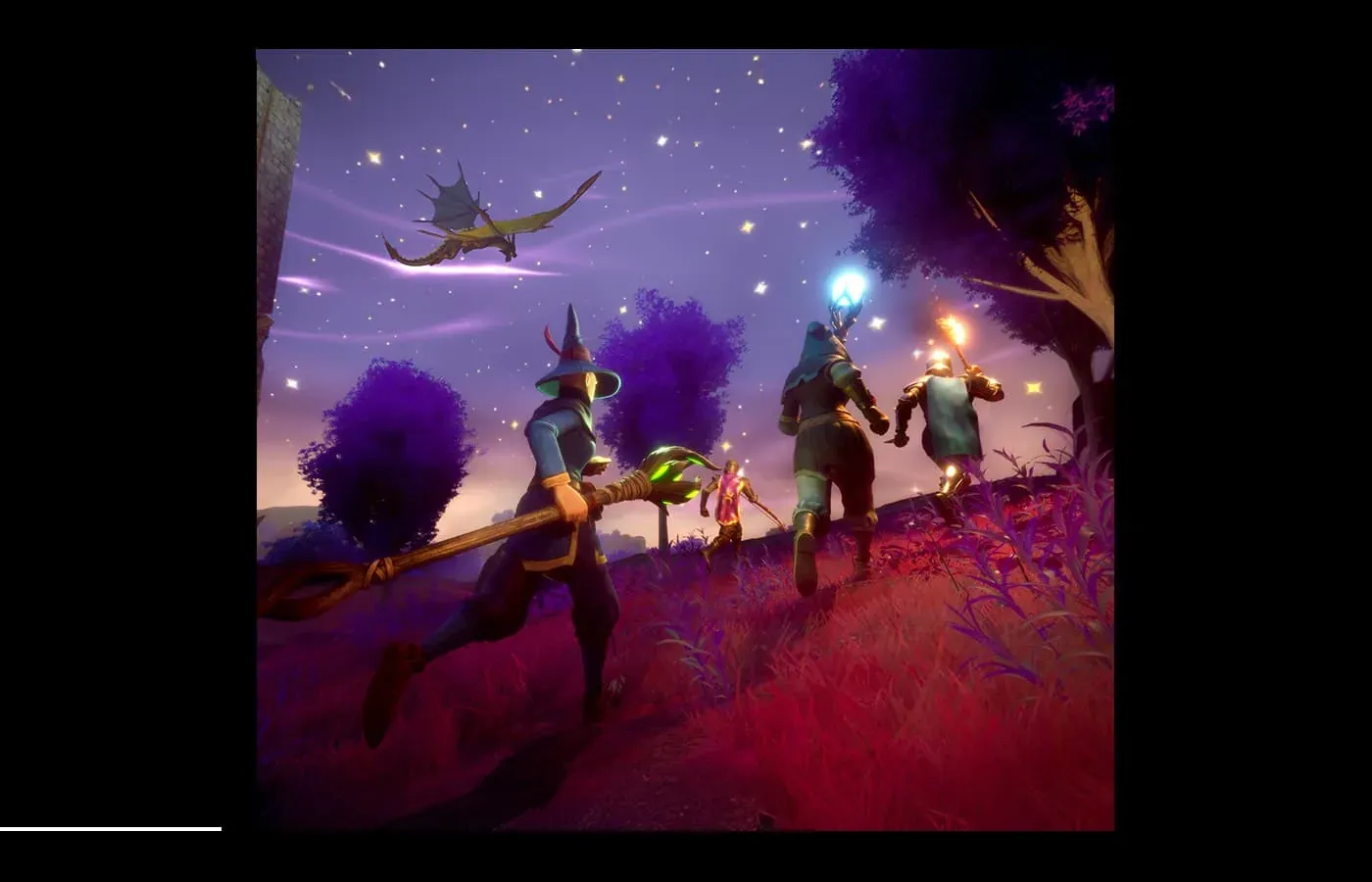
If you and your friends play regularly, a dedicated server beats hosting a world every evening. Jagex published a setup guide for it, so here are the parts that decide whether it works.
Player limit first. The official guide states that dedicated servers support up to 6 players as of 0.11 (March 2026). The store page lists co-op as 1 to 4 players. Those two numbers describe different setups, so it is worth separating them before you buy.
Three ways to host
| Option | Difficulty | Cost | Save safety |
|---|---|---|---|
| Shockbyte, the official partner | Easiest | Monthly fee | Described as secured |
| A PC at home | Hard | Electricity | Manual backups only |
| A cloud machine | Hardest | Depends on specs | Manual backups only |
Shockbyte is Jagex’s official hosting partner. Rent a server there, open the config page, click RuneScape: Dragonwilds Settings and edit the values. Write down the world name and start it.
Hosting at home has one hard requirement: 64-bit OS only. Windows and Linux both work.
RAM is a formula, not a guess
The guide gives it as 2 GB plus 1 GB per player:
- 2 players → 4 GB
- 6 players → 8 GB
Work that out before you pick a cloud plan or an old desktop, rather than finding out when it crashes.
Ports are where home hosting usually breaks
The default port starts at 7777, and a second server uses 7778, and so on. The details matter:
- Forward UDP, not TCP.
- Every router between you and your ISP needs the forward.
- Some ISPs block port forwarding outright. Some give you an admin panel, others make you call support.
- The tell-tale symptom: other players can see your world in the list but cannot join. That is almost always a port forwarding problem.
Installing the server: there is a free Steam product
Search Steam for RuneScape: Dragonwilds - Dedicated Servers. It is free. You can also install it by command line:
steamcmd +force_install_dir C:\MyInstallFolder +login anonymous +app_update 4019830 +quitThen run RSDragonwilds.exe. Jagex recommends the launch options -log -NewConsole, which prints what the server is doing to a console and saves you half the debugging time.
The server version has to match the client
Any update or hotfix can leave your server behind, and then it disappears from the world list.
To check: the server log shows its version at the top, the client shows its version in the top-left corner. If they differ, update the server. On Shockbyte, a restart updates it automatically.
Config values: some of these are mandatory
Config file locations:
- Linux:
Files > RSDragonwilds > Saved > Config > Linux > DedicatedServer.ini - Windows: copy the Linux file into
WindowsServer/DedicatedServer.ini
Mandatory:
| Value | What it is |
|---|---|
| Owner ID | Your player ID, found at the bottom of the in-game settings menu. The copy button helps |
| Server Name | The server name, independent of which world it runs |
| Default World Name | The world it creates on first start |
| Admin password | Anyone with this password can open the server management page, and counts as an admin |
Optional: world password. It overrides the password stored on the world itself. Leave it empty to let anyone join.
One warning: editing the ini while the server is running throws the changes away. Stop the server first.
Finding your own server
Open the Worlds screen in game, switch to the Public tab and type the exact world name, case sensitive. It should appear within seconds.
If it does not, work through this list:
- Are the server and client on the same version?
- Is the world name you searched the one the server is actually running?
- Are all the mandatory config values set?
- Read the log. It tells you what state the server is in.
Who gets admin rights
The server splits players into three groups:
- Owner. The person whose player ID matches the Owner ID in the config. Can ban and unban anyone, online or offline.
- Admin. Anyone who entered the admin password and opened the server management page. Can ban regular players who are online, but cannot unban.
- Everyone else.
Saves and world management
On start, the server loads the newest .sav in RSDragonwilds/Saved/Savegames. If there is no save there, it creates a default Standard world.
Moving a single-player world onto the server:
- Stop the server.
- Back up everything in
Saved/Savegamessomewhere else. - Empty that folder.
- Copy your local
.savfromC:\Users\<username>\AppData\Local\RSDragonwilds\Saved\SaveGamesto the server’sRSDragonwilds/Saved/Savegames. - Start the server.
Backups are just copying the files in RSDragonwilds/Saved/Savegames somewhere safe. Renaming them with a date makes it easier to keep track.
Known issues from the official guide
- Inviting players to a dedicated server through Steam invites currently does not connect properly. Searching the Public tab is more reliable.
- Editing
dedicatedserver.iniwhile the server runs loses the changes. - Joining a modded dedicated server can corrupt your player save. Jagex lists this as under investigation in the 1.0 known-issues update. Keep your main world on an official or unmodded host and treat modded servers as test worlds.
- The server browser search box is case sensitive. If your own server does not show up, search in lower case or by name prefix.
Both of the last two change where you should keep a long-term world, so until they are fixed, host your main save somewhere clean. The full save timeline and protection steps live on world saves.
Sources
- Jagex, “Our 1.0 Release is live!”: https://dragonwilds.runescape.com/news/launch (15 September 2026)
- Jagex, “Dragonwilds’ Price Isn’t Changing.”: https://dragonwilds.runescape.com/news/ea-pricing (2 September 2026)
- Official 1.0 update video, “Our Early Access Journey Is Coming to an End”: https://www.youtube.com/watch?v=HuEqe0JigCM (15 September 2026)
- Steam store page (editions, price, system requirements, review counts): https://store.steampowered.com/app/1374490/RuneScape_Dragonwilds/
- Jagex, “The RuneScape Company Expands RuneScape: Dragonwilds In Asia”: https://www.jagex.com/news/jagex-the-runescape-company-expands-runescape-dragonwilds-in-asia-through-landmark-publishing-partnerships (23 June 2026)
- Jagex, “1.0 Known Issues List and Update” (modded server saves, case-sensitive server search): https://redd.it/1whtisk (16 September 2026)